Post by: weskm on January 27, 2010, 08:59:43 AM
I have a TS-X6.0TL/R5 that on boot up gives me an E06 : TFT Mode Lost Boot Image.
followed FAQ's am confused with FAQ 2 what does the below mean?
v\:* {behavior:url(#default#VML);}
o\:* {behavior:url(#default#VML);}
w\:* {behavior:url(#default#VML);}
.shape {behavior:url(#default#VML);}
-->
Post by: JoshC on January 27, 2010, 12:54:34 PM
It looks like your post or screen shot got messed up. Try to post it again please.
Post by: weskm on January 27, 2010, 04:02:28 PM
That is what I intended top post...It is verbatim what I see in FAQ 2 so I was asking what does it mean?
Wes
Post by: JoshC on January 27, 2010, 10:18:42 PM
Im sorry but I do not see that anywhere on there?
Updating firmware from EM mode:
NOTE: Please be sure that you don't extract the nice the NAS.
BEFORE UPDATING:
Make sure that your computer/server is on the same subnet as the NAS.
Example:
IP Address of NAS: 192.168.11.150
IP Address of computer/server: 192.168.11.xxx (where xxx is anyvalue between 0 and 255 but NOT 150)
Updating firmware usually goes 1 of 2 ways:
- A normal update in EM just requires that you run the correct firmware after extracting the files on to your computer
-or-
- A force update (steps outlined below) where certain flags will need to be set in the initialization file as well as the updater itself.
To perform a force firmware update:
There are two ways to update nice to the older ones.
Performing a firmware update with tsupdater or lsupdater:
1. Download the nice by posting on our forum
2. Extract the files on to your desktop
3. Open up the tsupdater.ini or lsupdater.ini (if you don't see the .ini part of the file I have pictures of what the file icon looks like for
XP and Vista)
 ini file icon for XP
  ini file icon for Vista
4. You should see text closely resembling the following:
[Application]
Title = BUFFALO
LS-WTGL/R1-V3 Updater Ver.3.09WaitReboot = 480
WaitFormat = 500
[Target]
ProductID = 0x00003004
Name = LS-WTGL/R1-V3
[nice = 1
5. You'll want to change the "VersionCheck = 1" value to 0 and then hit Enter a couple of times to go to new lines and add in the following:
[SpecialFlags]
Debug = 1
6. Once these changes are made you'll want to save the ini file
7. Open the tsupdater or lsupdater file with the following icon next to it (some variations may occur):
tsupdater or lsupdater application icon
8. The nice on the title bar of the firmware update window and choose Debug (D). The resulting window will pop up:
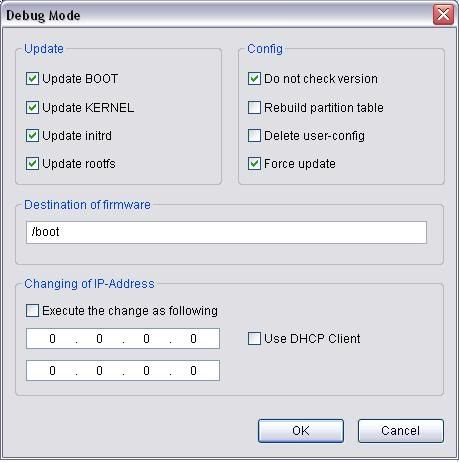
9. Make sure the options in your window are checked exactly as shown above
10. Click OK
11. Click Update
NOTE:
If you're performing a firmware update in normal or EM mode you will be asked to enter the admin password. In normal mode the admin password should be what you had set it to, however in EM it should default to 'password' (minus apostrophes of course).
If you experience issues such as "ACP_STATE_FAILURE" you can try running the firmware update in Safe Mode with Networking or on another computer. An "ACP_STATE_FAILURE" usually refers to the unit having a defect on the system board. That in mind I would recommend contacting your regions Technical Support for an RMA as this is usually irreparable. It is rare but sometimes you can manage to pull out of a downward spiral and successfully update the firmware from a different OS. Please bear in mind though that this is usually a sign that the NAS
will fail in time. If you do manage to recover I would strongly recommend backing up your data to an alternate source as quickly as possible.
nice">kevin):
ACP_STATE_FAILURE is an error suggesting that there is not enough rough room (on the flash chip or FW partitions) to update FW. Though,
ACP_STATE_PID_FAILURE I believe is failure of the chip and does need to be replaced.
Try nice Delete user config. If your willing to lose data, also try
rebuilding the partition table.
Force firmware update on older units:
NOTE:
Units such as the TeraStation I and LinkStation Gigabit are among the older NAS devices in this category. Since these devices are
discontinued there isn't a TFTP solution that we offer, so if this procedure fails and you need your data I would suggest contacting a 3rd party data recovery professional.
1. Download the appropriate firmware for your NAS from our website
2. Extract the files on to your desktop
3. Right click on the NASupdater application and go to Send To->Desktop (Create Shortcut)
4. Right click on the newly created shortcut and choose Properties
5. In the target line you will see:
"C:/[Path to your Desktop]/[Your NAS firmware folder]/NASupdater.exe"
On the right side of the end quotation you'll want to add:
[spacebar]/force
6. Click on the Compatibility tab in the window and choose to "Run this program in compatibility mode with Windows 2000"
7. Cross your fingers and run the shortcut